
Setting Up GPU-Accelerated Computing Within COMSOL Multiphysics®
COMSOL Multiphysics® includes support for GPU-accelerated computing. This guide features quick setup instructions for installing and configuring the software necessary to use this functionality.
In COMSOL Multiphysics®, GPU acceleration can significantly increase performance. This functionality is available for Windows® and Linux® operating systems and requires a compatible NVIDIA® graphics card, along with an installation of the CUDA® Toolkit.
Version 6.4 Installation: Support for the CUDA® Toolkit and CUDA® Direct Sparse Solver
This process applies to COMSOL Multiphysics version 6.4 and up. It enables expanded GPU acceleration to general single physics and multiphysics simulations, in addition to previously supported use cases of time-explicit pressure acoustics modeling and deep neural network (DNN) surrogate model training.
Compatibility and Requirements
The operating system and hardware requirements for the CUDA® Toolkit component can be found under the GPU Computing section of the System Requirements for version 6.4.
Setup Process for the CUDA® Toolkit
Installation of the NVIDIA® CUDA® Toolkit is included in the COMSOL® software installation. Thus, it is handled automatically when using the COMSOL Installer. Enabling GPU-accelerated computing in your installation includes the following remaining steps:
- Installing COMSOL Multiphysics® with GPU compute support
- Verifying the CUDA Toolkit installation in COMSOL Multiphysics®
Each step is outlined below in further detail.
Installing COMSOL Multiphysics® with GPU Compute Support
In the COMSOL Installer, there are two pages with options regarding GPU acceleration. These are detailed in the steps below, with screenshots from the Windows® version of the Installer. The Linux® version looks slightly different, but the same instructions apply.
For general instructions on how to install COMSOL Multiphysics, please see the COMSOL Multiphysics® Installation Guide in the COMSOL Documentation or the Learning Center article "How to Install COMSOL Multiphysics®". For general instructions on how to add new products to your existing installation, please see the Learning Center article "How to Add New Products to COMSOL Multiphysics® Installations".
Step 1: The Products Page
All COMSOL Multiphysics 6.4 installations have the GPU Compute Components checkbox selected by default to be included, thus no action is needed on the Products page of the installer and you may proceed to the next step.
If you have already completed a separate installation of a compatible NVIDIA® CUDA® Toolkit or CUDA® Direct Sparse Solver library, you may deselect the NVIDIA® CUDA® Toolkit and/or NVIDIA® cuDSS checkboxes, respectively, which are found under the GPU Components checkbox. After doing so, you will need to specify the file path for the respective directory in the Options page, which follows next.
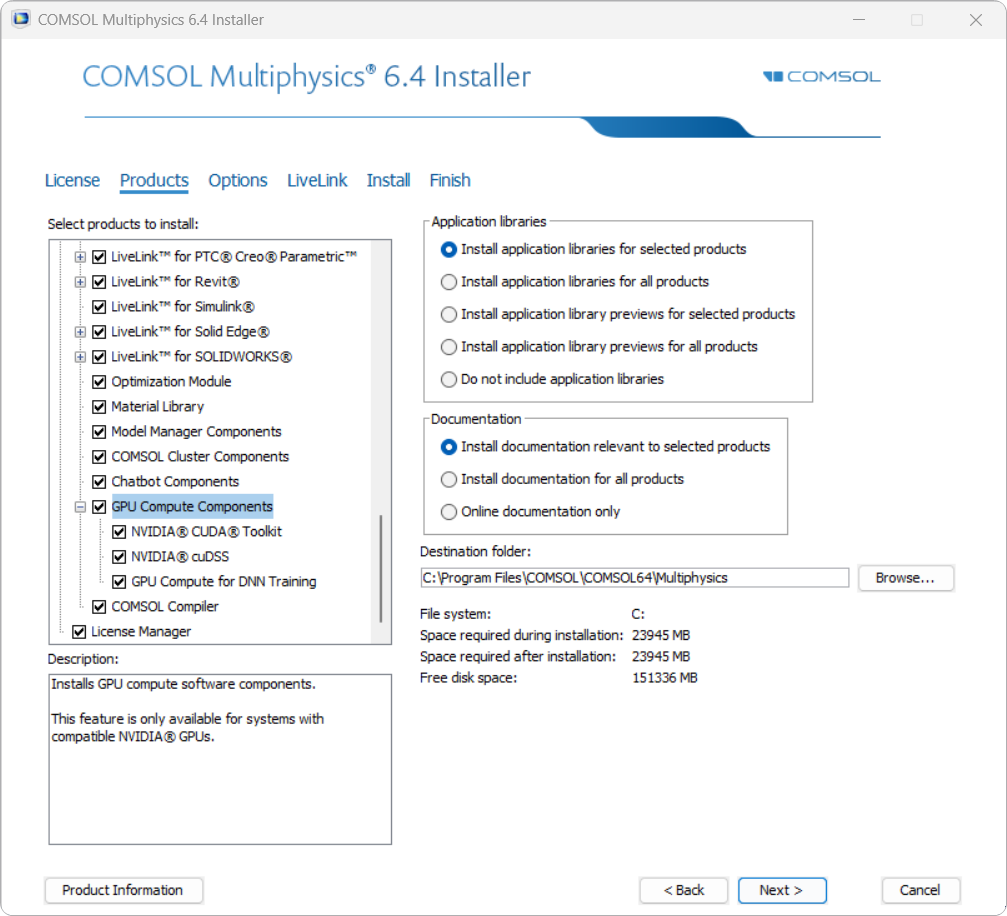
A screenshot of the COMSOL Multiphysics 6.4 Installer with the Products page open and the GPU Compute Components checkbox highlighted.
Step 2: The Options Page
This step is required only if the checkboxes for NVIDIA® CUDA® Toolkit and/or NVIDIA® cuDSS were deselected on the previous Products page. Otherwise you may proceed with the remaining steps of the installation.
Use the Custom CUDA directory and/or Custom cuDSS directory fields to specify the file path to your existing installation of the CUDA® Toolkit and/or CUDA® Direct Sparse Solver, respectively, in the Options page.
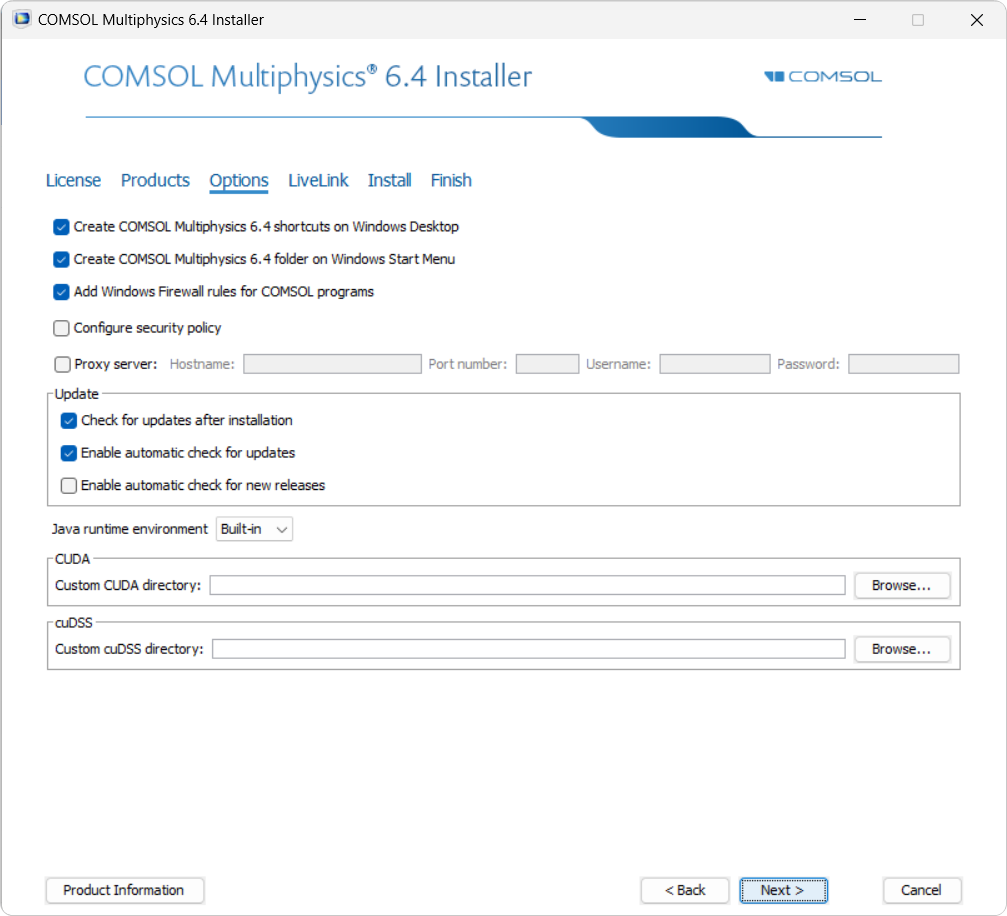
A screenshot of the COMSOL Multiphysics 6.4 Installer with the Options page open. The Custom CUDA directory field and the Custom cuDSS directory field are displayed and if preferred a custom file path can be specified.
You may then proceed with the remaining steps of the installation. After completing installing the software, verify your installation of the CUDA® Toolkit and CUDA® Direct Sparse Solver in COMSOL Multiphysics.
Version 6.3 Installation: Support for the CUDA® Toolkit
This process applies to COMSOL Multiphysics version 6.3 only. It enables GPU acceleration for time-dependent simulations that use the discontinuous Galerkin (dG) method, such as those using the Pressure Acoustics, Time Explicit interface, and for training DNN surrogate models.
Compatibility and Requirements
The operating system and hardware requirements for the CUDA® Toolkit component can be found under the GPU Computing section of the System Requirements for version 6.3.
Setup Process for the CUDA® Toolkit
The process of installing the CUDA® Toolkit and then enabling GPU-accelerated computing in your COMSOL Multiphysics installation includes the following steps:
- Installing the NVIDIA® CUDA® Toolkit
- Installing COMSOL Multiphysics® with GPU compute support
- Verifying the CUDA Toolkit installation in COMSOL Multiphysics®
Each step is outlined below in further detail.
Installing the NVIDIA® CUDA® Toolkit
Step 1: Download the Installer
Start by downloading the CUDA Toolkit 12.4 installer from the CUDA Toolkit 12.4 Downloads page. You should select the appropriate operating system, architecture, distribution (option for Linux® OS), and version number from the Select Target Platform section of the CUDA Toolkit 12.4 Downloads page.
After navigating the tree of supported configurations and systems, the final choice of installer type will be either local or network. The local installer is a larger initial download but includes everything necessary for installation. The network installer is a much smaller initial download and only downloads further files if and when they are needed. You can choose the installer type that best suits your needs. Both types will create installations compatible with COMSOL Multiphysics®.
Step 2: Run the Installer
The installation process is different for Windows® and Linux® operating systems, and differs between Linux® distributions as well. To ensure that the installation instructions are up-to-date, please follow the official installation instructions provided by NVIDIA®:
If a minimal installation is desired, select the Custom (Advanced) installation option. The only parts of the CUDA® Toolkit that are needed for use with COMSOL Multiphysics® are the CUDA Runtime and Driver components.
Installing COMSOL Multiphysics® with GPU Compute Support
In the COMSOL Installer, there are two sections with options regarding GPU acceleration. These sections are detailed in the steps below, with screenshots from the Windows® version of the Installer. The Linux® version looks slightly different, but the same instructions apply.
For general instructions on how to install COMSOL Multiphysics, please see the COMSOL Multiphysics® Installation Guide in the COMSOL Documentation or the Learning Center article "How to Install COMSOL Multiphysics®".
Step 1: The Products Page
Note: This step is only required if you are installing GPU compute support for training DNN surrogate models. To resume installing GPU compute support for the dG method, please proceed to Step 2.
The available selection of products to install depends on your license. All COMSOL Multiphysics 6.3 installations include support for using GPU acceleration with the dG method. To be able to use GPU acceleration for DNN training, the CUDA DNN Support component must be selected on the Products page of the Installer. Note that this will add 1.3 GB to your COMSOL Multiphysics installation on Windows® and 1.8 GB to your installation on Linux®.
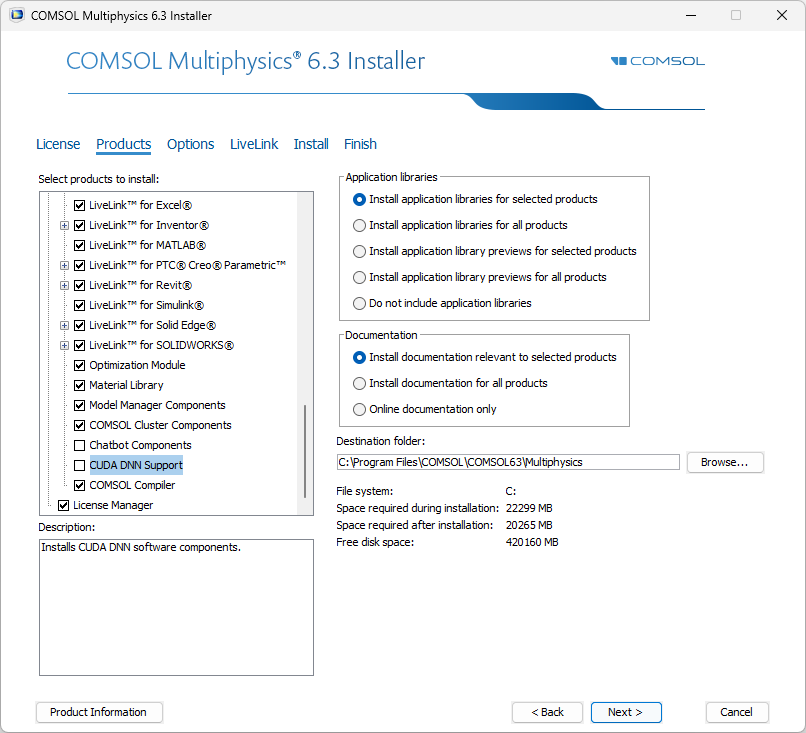
A screenshot of the COMSOL Multiphysics 6.3 Installer with the Products page open and the CUDA DNN Support checkbox highlighted.
Step 2: The Options Page
The CUDA section of the Options page contains a CUDA Directory field for the path to the CUDA Toolkit installation. In most cases, installing the CUDA® Toolkit before starting the COMSOL Multiphysics Installer will set environment variables that let the Installer detect this path automatically. If the correct CUDA Toolkit directory is not detected automatically, the path can be set in the Installer or changed in the Preferences window settings after installation is complete.
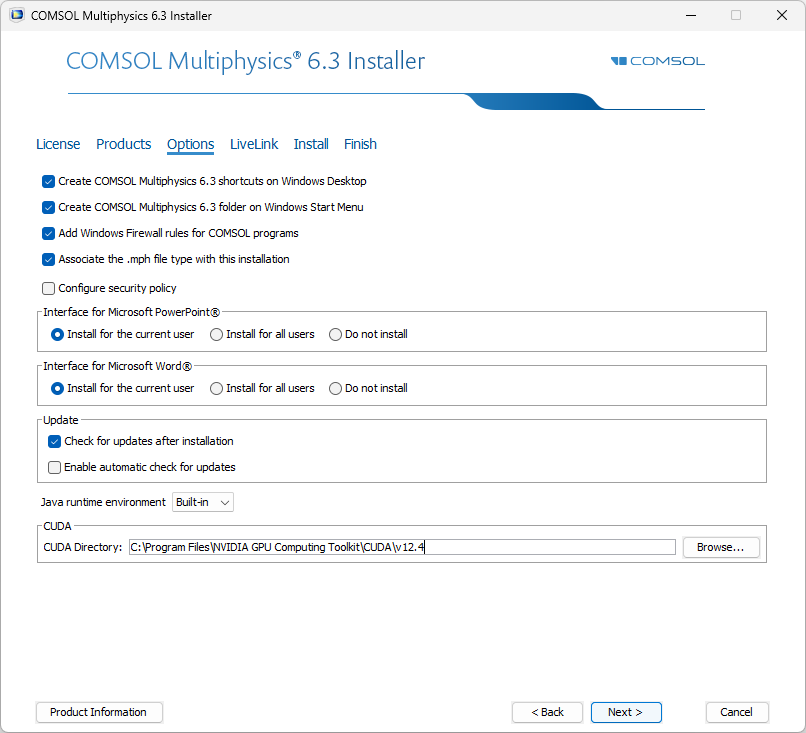
A screenshot of the COMSOL Multiphysics 6.3 Installer with the Options page open and the default CUDA Toolkit installation path in the CUDA Directory field.
You may then proceed with the remaining steps of the installation. After completing installing the software, verify your installation of the CUDA® Toolkit in COMSOL Multiphysics.
All Versions: Verifying the CUDA Toolkit Installation in COMSOL Multiphysics®
After installing and configuring COMSOL Multiphysics® and the CUDA® Toolkit you can verify your installation by starting COMSOL Multiphysics® and opening the Preferences window. Do this by going under the File menu and selecting Preferences. From there you can navigate to the Computing section and click on the GPU Acceleration page. Lastly, click the Verify CUDA Installation button. If you are using version 6.4, which also supports the CUDA® Direct Sparse Solver, you must manually verify the cuDSS library file path by reviewing it in the same window.
The path to the directory for each can also be updated in the Preferences window.
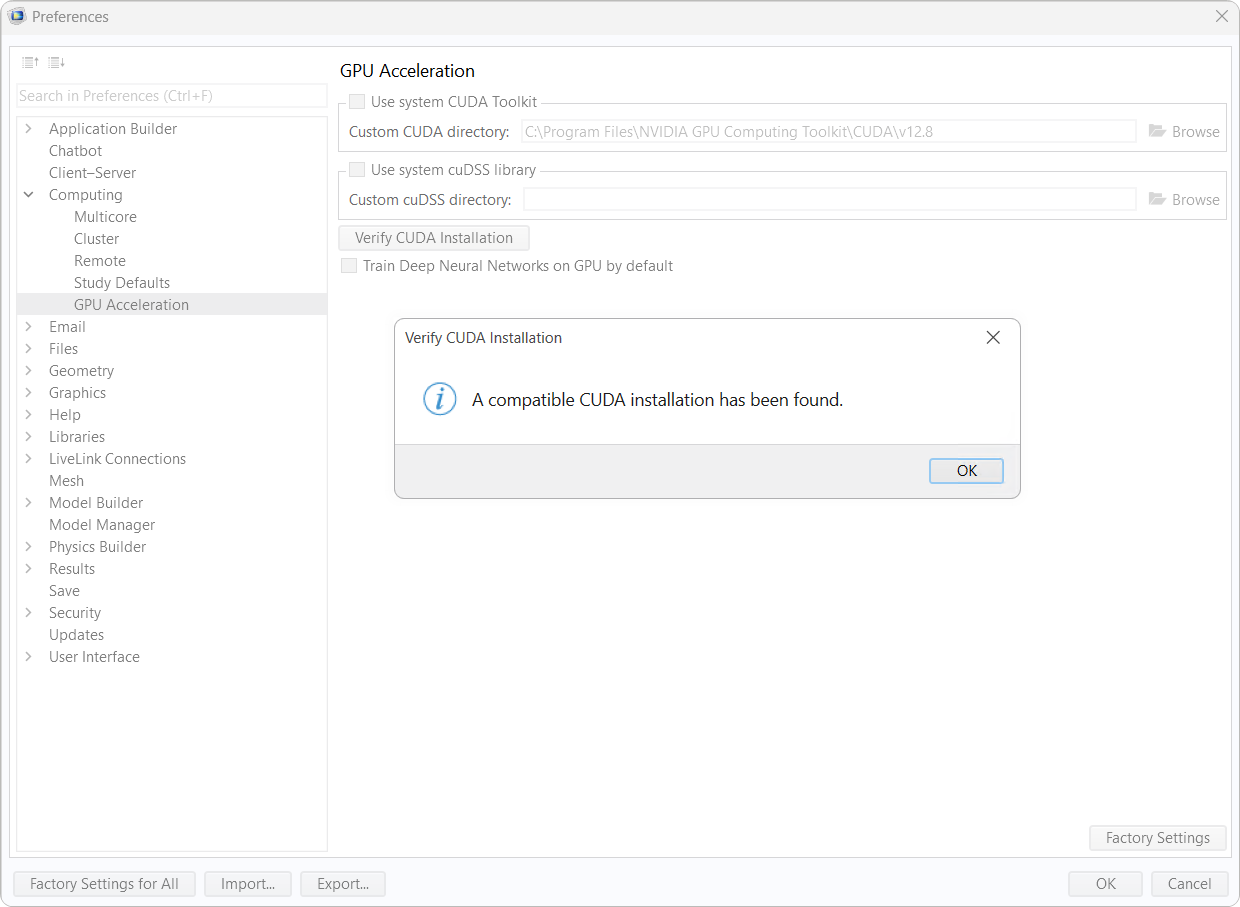
The Preferences window in COMSOL Multiphysics® version 6.4 in Windows®, with a Verify CUDA Installation dialog open. The Verify CUDA Installation button checks the CUDA Toolkit, while the cuDSS library file path must be verified by manually checking it.
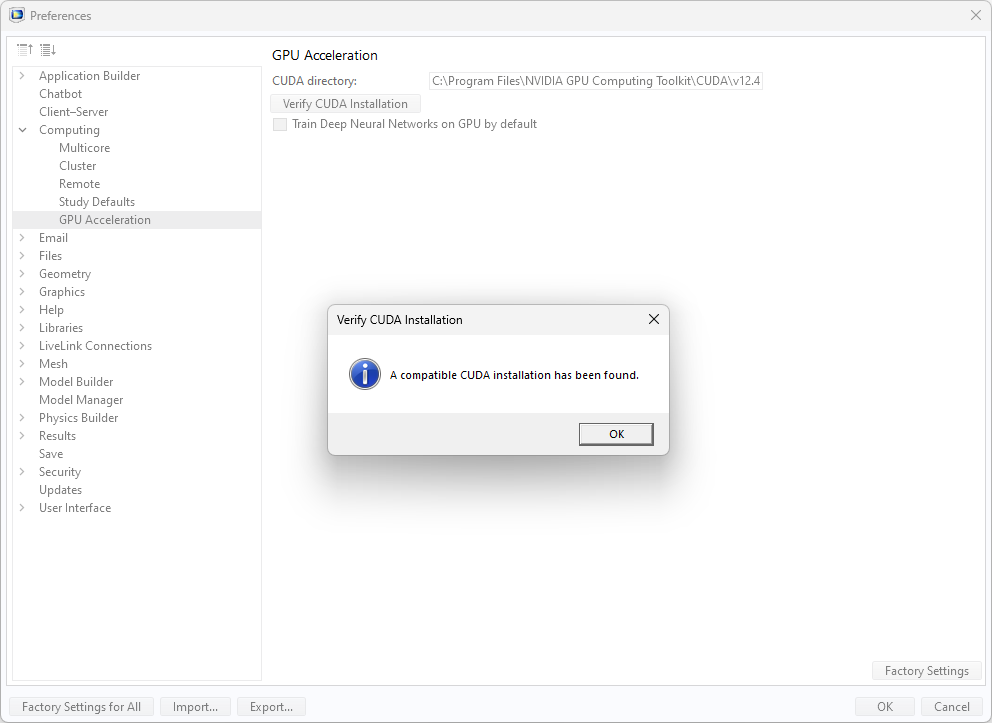
The Preferences window in COMSOL Multiphysics® version 6.3 in Windows®, with a Verify CUDA Installation dialog open.
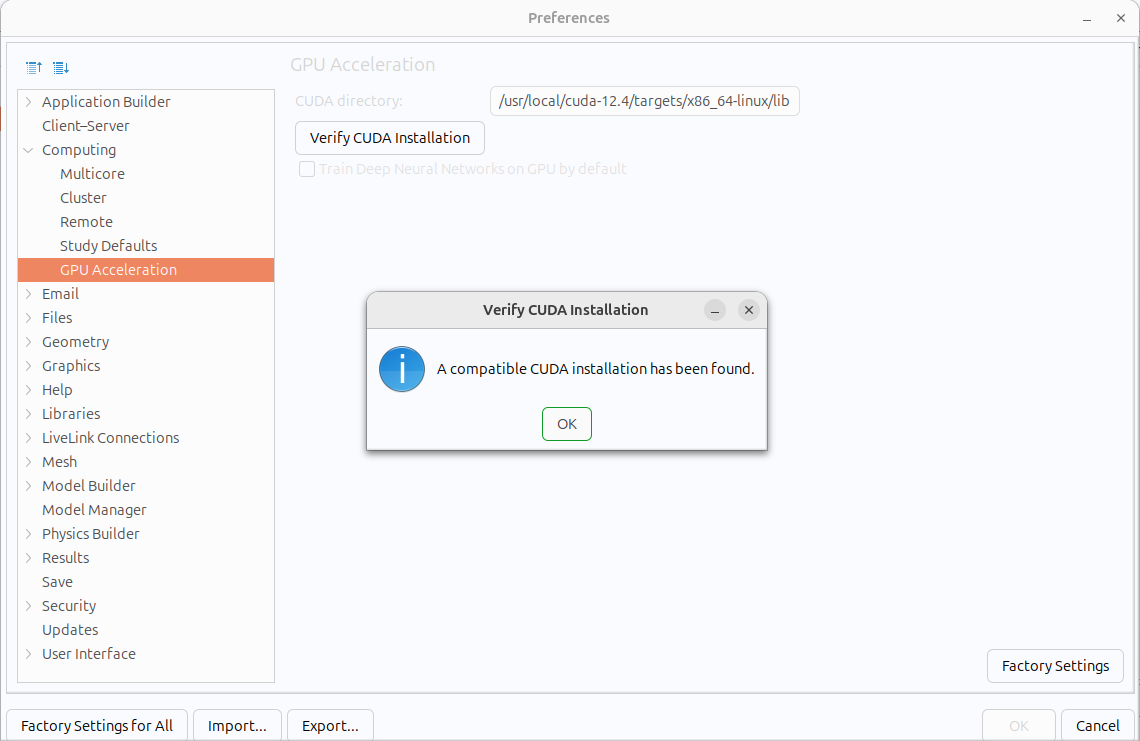
The Preferences window in COMSOL Multiphysics® version 6.3 in Ubuntu®, with a Verify CUDA Installation dialog open.
GPU-accelerated computing is now supported in your installation of COMSOL Multiphysics® and is ready for use.
Further Learning
For more information on GPU support for simulations and surrogate model training, please see the COMSOL Multiphysics Release Notes and COMSOL Multiphysics Reference Manual in the documentation.
NVIDIA and CUDA are trademarks and/or registered trademarks of NVIDIA Corporation in the U.S. and/or other countries. Linux is a registered trademark of Linus Torvalds in the U.S. and other countries. Microsoft and Windows are trademarks of the Microsoft group of companies. Ubuntu is a registered trademark of Canonical Ltd.
Envoyer des commentaires sur cette page ou contacter le support ici.


